
Your places.
Your map.
Your places stay on your device — and sync securely with iCloud.
You see a place in a video, a story, or a friend’s trip — and think, “I want to go there.”
Save them on your own map — without recommendations, bookings, or algorithms deciding for you.
We’re not a travel guide or a booking platform.
No social feeds. No pressure. Just your places — on your terms.
For the part of you that travels —
especially on Mondays.
We kept noticing the same pattern: we’d see an incredible place online and think, “I want to go there someday.”
Screenshots disappear. Notes get buried. Links get lost. Inspiration fades when it has nowhere to live.
So we designed My Traveler Map to be simple and focused — a private space where you can save places on your own map, without noise or distraction.
For travelers. For dreamers. For people who like to travel on their own terms.
A map you can actually make your own.
We start with a familiar map — and help you turn it into a private record of places you want to go, revisit, or keep in mind for later.
We designed it to match how you already think about places.
Start with your map
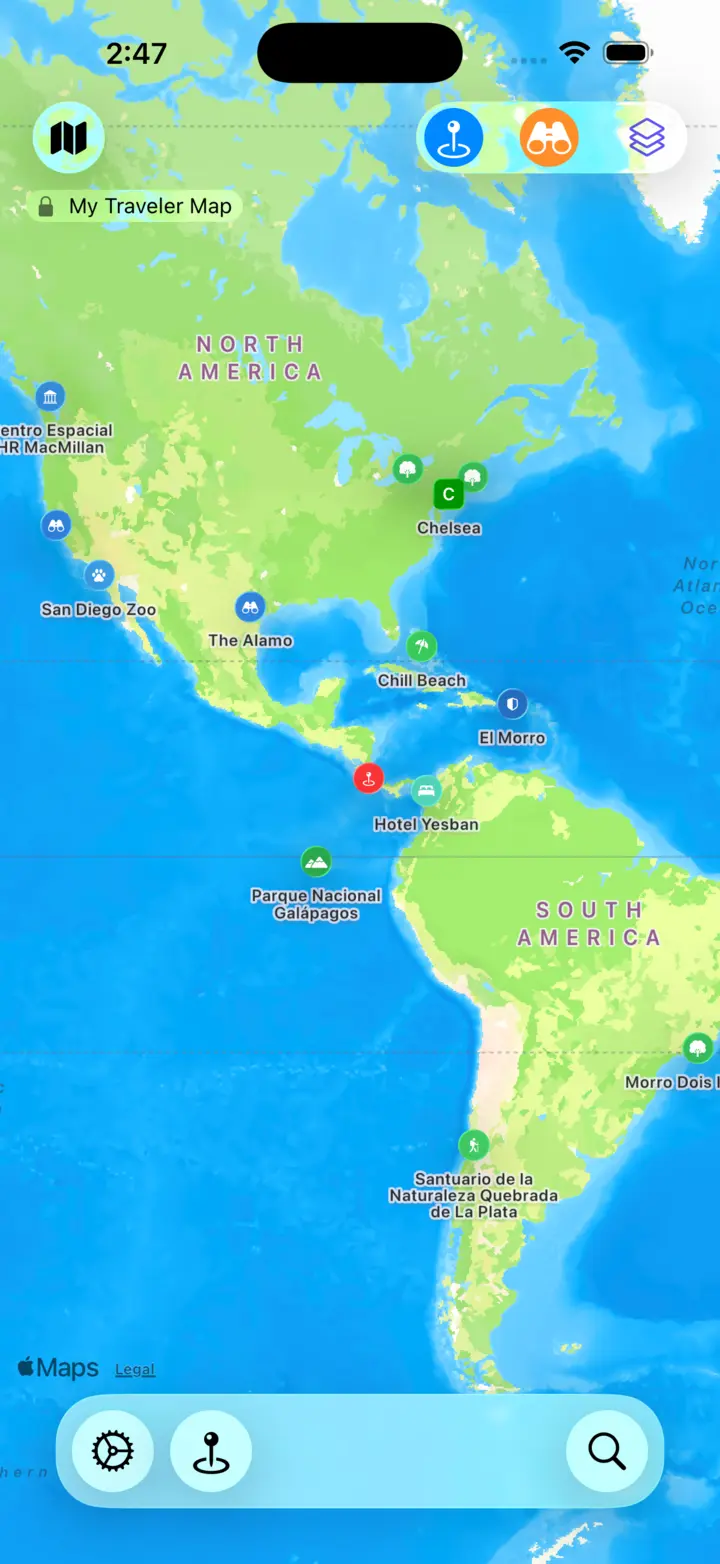
You begin exactly where you expect — on a familiar, fully interactive map. Your default map is called My Traveler Map, and it's yours from the start.
You can zoom, pan, rotate, and tilt the map just as you're used to — whether you're exploring nearby or browsing the other side of the world.
With Explorer, you can create additional maps for any purpose you can think of — and share them with friends or family. Free users can join maps that others share with them.
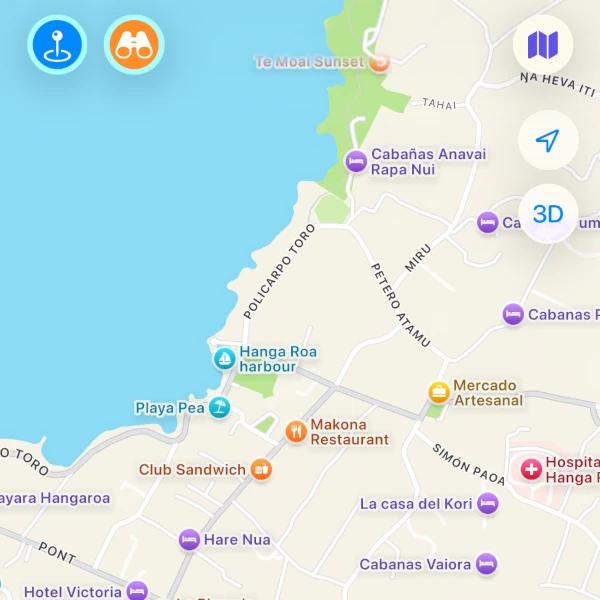
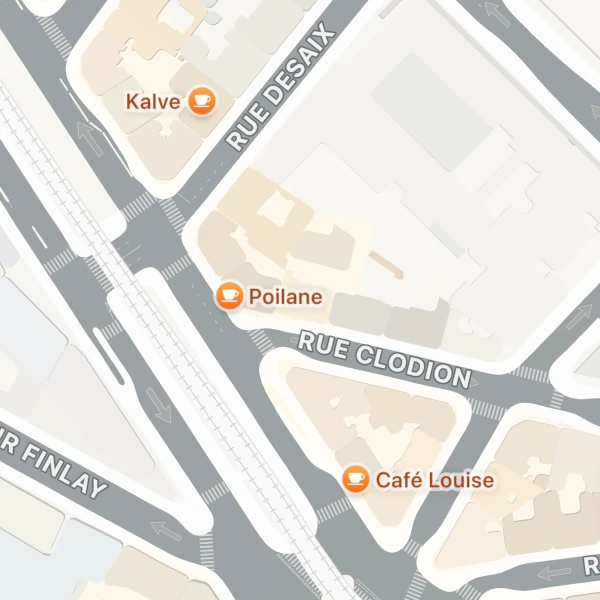
Points of interest (POI) appear directly on the map, giving you an instant sense of what's nearby. You can show or hide POI at any time using the binocular button, show or hide your saved places using the pin button, and switch to satellite view using the layers button.
Save places as you find them
When something catches your attention, saving it is just a tap away.
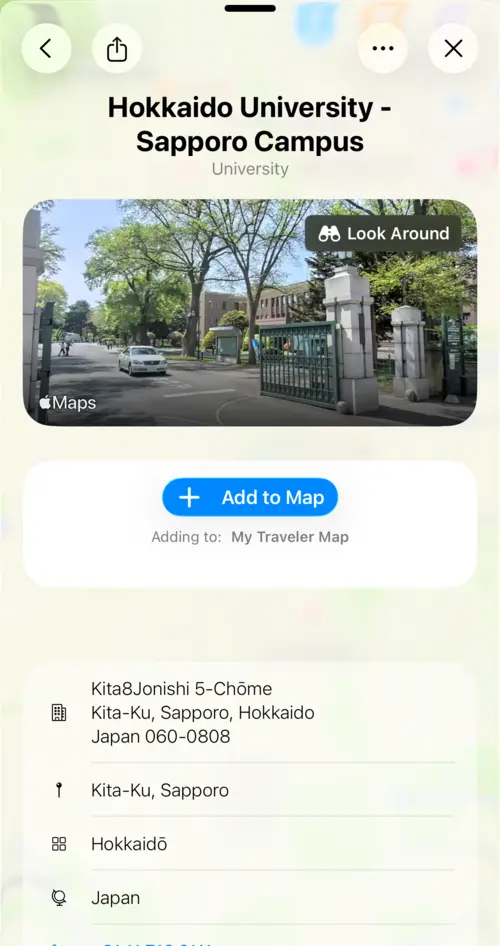
Tap any point of interest on the map to open its place view, where you’ll find details like the name, address, and available previews.
From there, you can add it to My Places, making it part of your personal travel database.
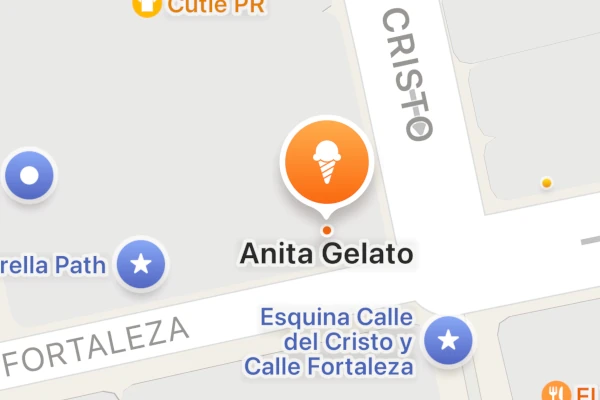
Long-press anywhere on the map to save any location — even if it’s not already listed on the map.
If you want to save a territory — like a neighborhood, city, region, or state — tap the area name on the map and add it as any other place.
Places are always saved into your currently active map.
Come back anytime
Every place you save becomes part of your current map — your own way of organizing the places that matter to you.
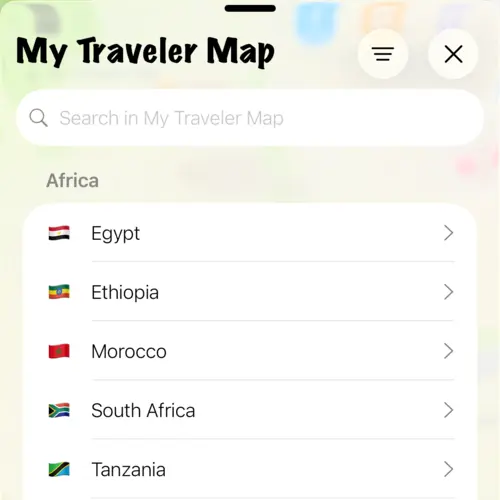
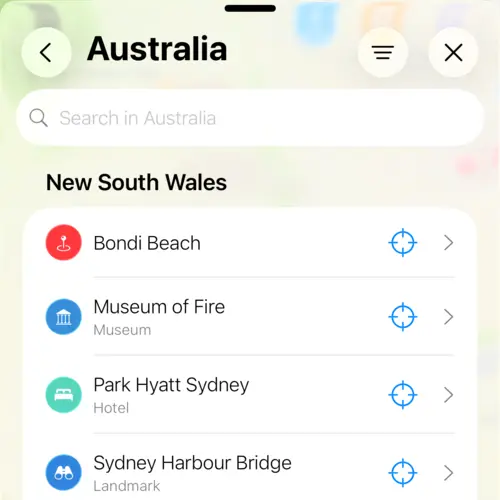
Your places are grouped by country name or continent and by city or region/state, so you can easily browse and rediscover ideas you saved months or even years ago.
Open your current map anytime from the bottom menu.
Whether you’re actively planning a trip or just revisiting an old idea, everything you’ve saved is right where you left it.
Get a feel for a place
Sometimes a name isn’t enough — you want to see what a place feels like.
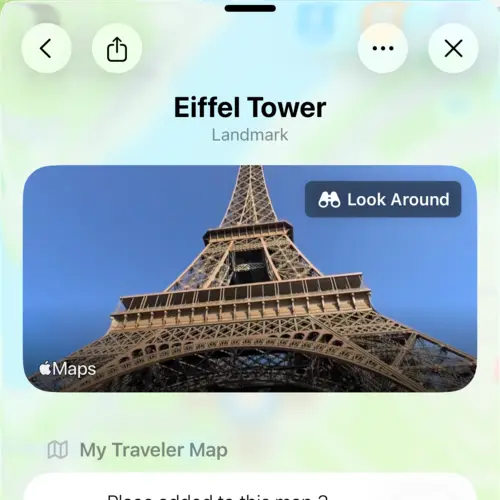
When available, we show Apple Maps interactive Look Around views right in the place details, so you can explore the surroundings at street level.
Everything stays together — previews, name, address, and your notes — in one place.
Search places worldwide
We use Apple Maps data so you can search for places anywhere in the world.
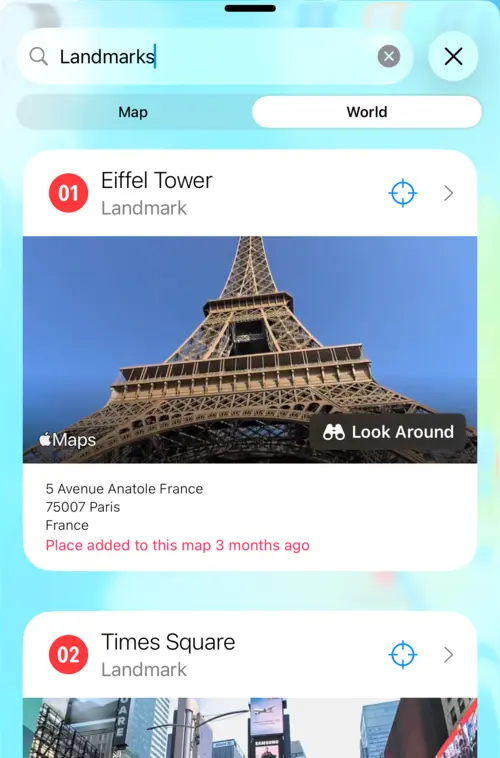
You can look for landmarks, categories, or specific destinations and browse results with rich previews when available.
Each result includes useful context like distance from your location and address information.
Use the target button to show the place on the map, or tap on the information to open the place view and save it to your map if you want.
See only what matters right now
Choose what shows up on your map. In Settings → Map Filter, select the categories you want — like restaurants, parks, landmarks, and more.
With the Explorer upgrade, you can create quick filters so it’s easy to switch between your favorites.